|
In the journal articles that I edit, I sometimes have to renumber Vancouver-style references that are out of sequence in the text for one reason or another and consequently need to be renumbered. This task can’t be automated fully, but having a renumbering system in place, and reducing the amount of typing you have to do, will make the process less painful and error prone. 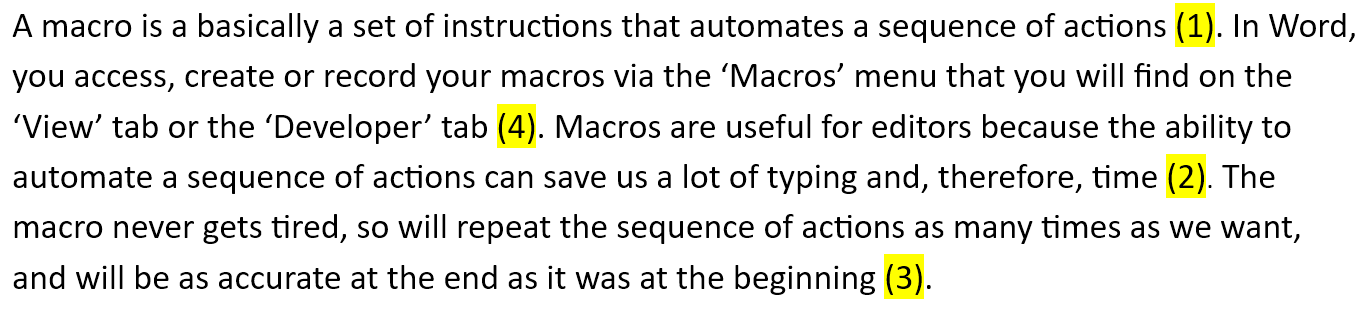 In this simple example it would be easy to sort out these out of sequence reference number by retyping the numbers and rearranging the corresponding references in the reference list, but even so, you would have to check to see if references 2 to 4 appeared elsewhere in the document as these would also need to be renumbered. This is the system I use for more complex reference renumbering ... You will need:
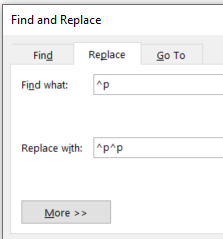
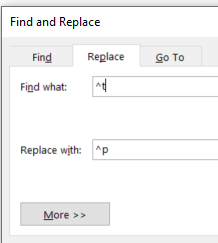
The first step is to create a one-column table with as many rows as the number of references in the article ie, if the article has 54 references, create a table with 54 rows. 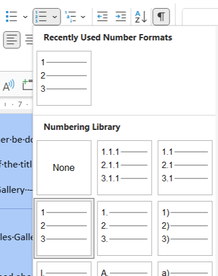 Add numbers to the table using Word's numbered list feature. Remove the automated numbering with Paul Beverley's AutoListOff macro. Then delete the first few rows so that your table starts with the number of the first reference that needs to be changed. Select the table and add another column to the right-hand side. You should end up with a table that looks something like this, with the numbers on the left-hand side in your table representing the original reference numbering ... 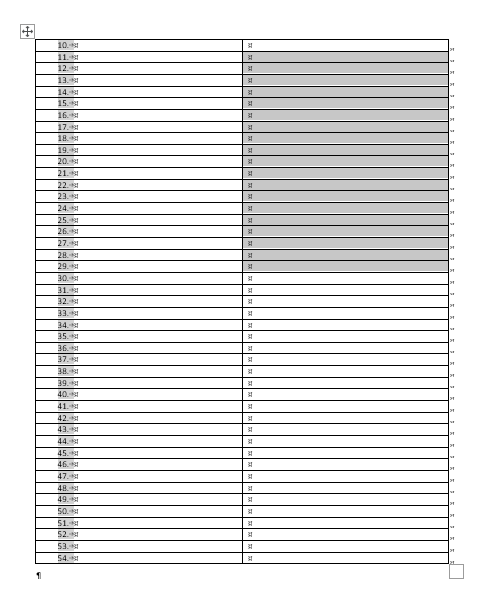 Now, you need to add the new reference numbers into the right-hand column. In this example, reference 10 has become reference 29 and references 11 to 29 need to be renumbered to compensate. Once the reference sequence matches the original numbering, you can split the table (and delete the table with the matching numbers). 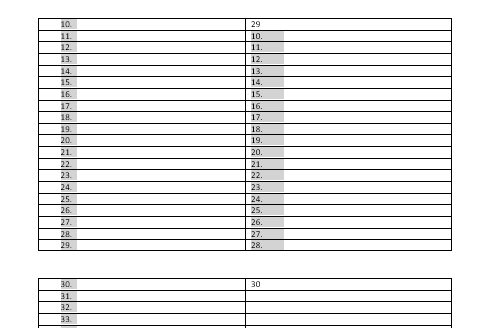 To help you distinguish the renumbered references from the original references, select the right-hand column and use a different font colour for the new reference numbers. 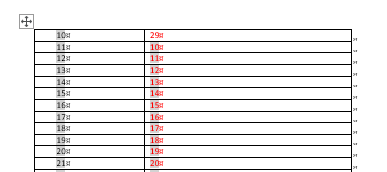 The next stage is to create a list that will act as the Switch list in Paul Beverley's MultiSwitch macro. Using Word's Find and Replace for Special Characters, remove any tabs etc. from the table and convert it to text using the Table to Text tool. 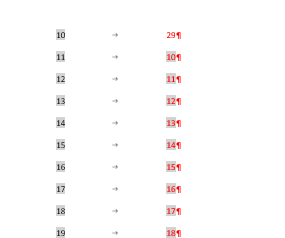 Using Find and Replace, double up each paragraph mark, and then convert the tabs to paragraph marks.
This should give you a list that looks like this ... 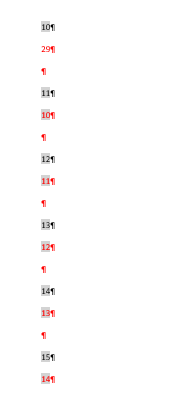 You need to save this document with the name 'SwitchList'. When you run the MultiSwitch macro, the first number in the pair will be substituted by the second number (in red). This macro is easiest to use if you assign a keyboard shortcut to it.
The next step is to systematically search for reference numbers in your article text. Select each number in turn (making sure that you select the whole number) and run the MultiSwitch macro. The macro will switch the old number for the correct new number without you having to refer to a list of renumbered references. You then need to repeat the renumbering process using the MultiSwitch macro in the reference list itself. Once you have finished, use Word's sort function to reorder the list - being careful to select numerical rather than alphabetical sorting. It's usually best to visually check the reference order afterwards just to check for any issues.
0 Comments
Your comment will be posted after it is approved.
Leave a Reply. |
AuthorAndrea at Yours Truleigh Editing Archives
November 2023
Categories
All
|
 RSS Feed