YOURS TRULEIGH EDITING
  • Home
  • Services
  • Portfolio
  • Testimonials
  • Contact
  • Blog

12/2/2021

Word: How to add a macro to the Quick Access Toolbar

0 Comments

Read Now
 
In the What is the Quick Access Toolbar? post, I described how to add a Word command to your Quick Access Toolbar. Here, I explain how to add a macro to the Quick Access Toolbar as there are a couple of extra steps that you need to do.
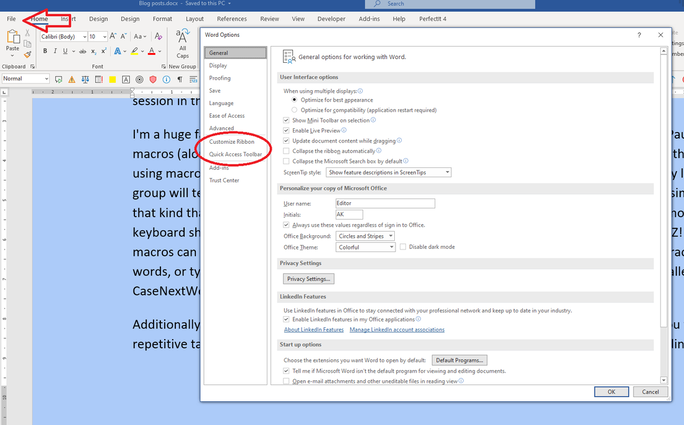
The first few steps are just the same as before. Go to File (at the top left hand side), then Options (right at the bottom in Word 365) and click ‘Quick Access Toolbar’ (which is located just underneath ‘Customise Ribbon’):
Picture
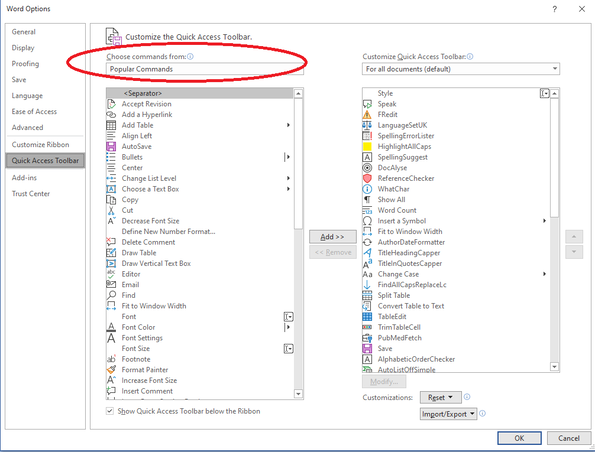
​This should bring you to this menu:
Picture
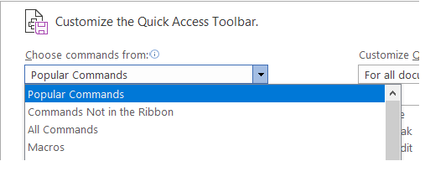
In the ‘Choose commands from:’ menu (‘Popular Commands’ – circled – is the first entry), you will see ‘Macros’ in the list:
Picture
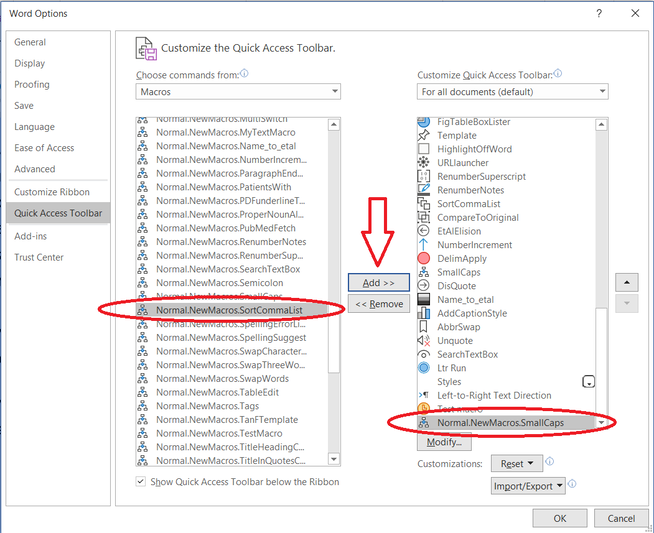
Selecting this will bring up a list of the macros that you have installed on the left ... and what you currently have on your Quick Access Toolbar on the right: 
Picture
Pick the macro that you want to add to your Quick Access Toolbar (this will be a bit easier for you as your list of macros is probably smaller!). Click ‘Add >>’ and your macro will appear in the list of items on your Quick Access Toolbar.

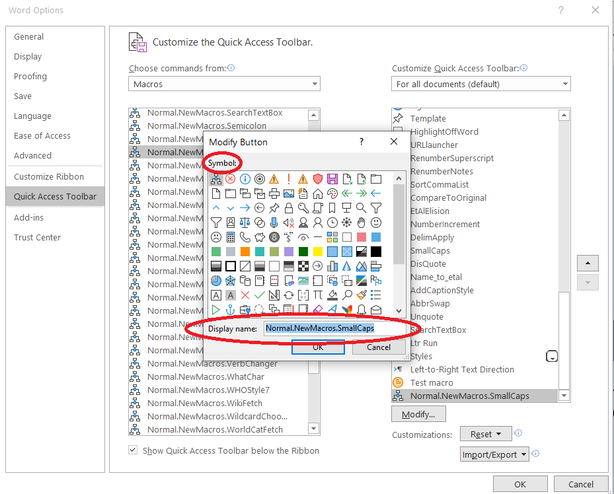
Click ‘Modify’ if you want to edit the name of the macro and to choose the icon that is associated with it:
Picture
Choose the icon by clicking on the icon you want. You can edit the name of the macro in the ‘Display name:’ box. I usually keep the name of the macro and delete the other information, but you can choose whatever name you want.
​
Your macro should now appear on your Quick Access Toolbar. Remember that you can decide what order your icons are arranged in. I show you how to move things around in the What is the Quick Access Toolbar post.

Go back to:
What is a Word Macro: Macro baby steps part iii

Author

Andrea at Yours Truleigh Editing.
www.yourstruleighediting.co

Picture

Archives

November 2023
December 2021
October 2021
August 2021
July 2021
June 2021
March 2021
February 2021
January 2021
December 2020

Categories

All
Advanced
Beginner
CIEP
Editorial Training
Intermediate
Macro Baby Steps
Macros
Music
PDF
PerfectIt
StetSwim
Time Off
Word Basics
Word Styles
Working With Word

Share

0 Comments

Your comment will be posted after it is approved.


Leave a Reply.

Details

    Author

    Andrea at Yours Truleigh Editing
    I'm an editor based on the south coast of the United Kingdom. I use Word tools to make the editing process as effiicient and accurate as possible, and I'm hoping to share some of the tips and techniques I've picked up along the way. I'm an enthusiastic and grateful member of the Chartered Institute of Editing and Proofreading. Editorial freelancers benefit hugely from being part of supportive organizations:  for direct support for our work, such as training and providing routes for our clients to find us, but also for community, which is needed now more than ever. 
    Please note: all Word tips are based on Word 365 for PC. 

    Archives

    March 2026
    January 2026
    September 2024
    November 2023
    December 2021
    October 2021
    August 2021
    July 2021
    June 2021
    March 2021
    February 2021
    January 2021
    December 2020

    Categories

    All
    Advanced
    AI
    Beginner
    CIEP
    CIEP Conference
    Editorial Training
    EndNote
    Intermediate
    Macro Baby Steps
    Macros
    Music
    PDF
    PerfectIt
    Recipe
    StetSwim
    Time Off
    Word Basics
    Word Styles
    Working With Word

    RSS Feed

Dr Andrea Kay
​Medical Editor | ​Yours Truleigh Editing

© COPYRIGHT 2026. ALL RIGHTS RESERVED.
  • Home
  • Services
  • Portfolio
  • Testimonials
  • Contact
  • Blog